
Version: 1.5.6 Framework: Ghost 6.x
Welcome to the official documentation for RAW theme. This guide covers everything from initial installation to advanced customization of the theme.
1. Getting Started
Installing the Theme
Follow these steps to add Raw to your Ghost site:
- Log in to your Ghost Admin.
- Go to
Settings>Design & branding>Customize. - Click
Change theme(bottom right). - Select
Upload themeand choose theghost-raw-theme.zipfile you downloaded. - Once uploaded, click
Activate.
Removing the Theme
If you need to remove Raw:
- Go to
Settings>Design & branding>Customize. - Click
Change theme. - Find Raw in the list. Before deleting, activate a different theme (you can’t delete an active theme).
- Click the
...menu next to Raw and selectDelete. Confirm the deletion.
Updating the Theme
Keep Raw up-to-date with the latest features and improvements:
- Download the latest version of the Raw theme zip file.
- Go to
Settings>Design & branding>Customize. - Click
Change theme. - Select
Upload themeand choose the newghost-raw-theme.zipfile. - Activate the updated theme.
Important: Updating overwrites any direct code changes you’ve made to theme files. If you’ve customized the code, back up your changes before updating.
Customization
Logo
Set your site’s logo for branding:
- Go to
Settings>Design & branding. - Under
Brand, findPublication logo. - Click
Upload logoand select your image file. Use a transparent background (like.png) for best results. - Click
Save.
Social Media Links
Display social media icons in your site footer:
Facebook and X (formerly Twitter):
- Go to
Settings>General. - Scroll to
Social accounts. - Enter your Facebook page URL and X profile URL.
- Click
Save.
Other Platforms (Instagram, LinkedIn, etc.):
- Go to Go to
Settings>Design & branding>Customize>Theme. - Find inputs for social link URLs.
- Enter your social URLs.
- Click
Save.
Supported Platforms:
Use the lowercase platform name as the key (e.g., instagram, linkedin).
LinkedIn, Intagram, Youtube, TikTok, Threads, Bluesky
Author Social Links
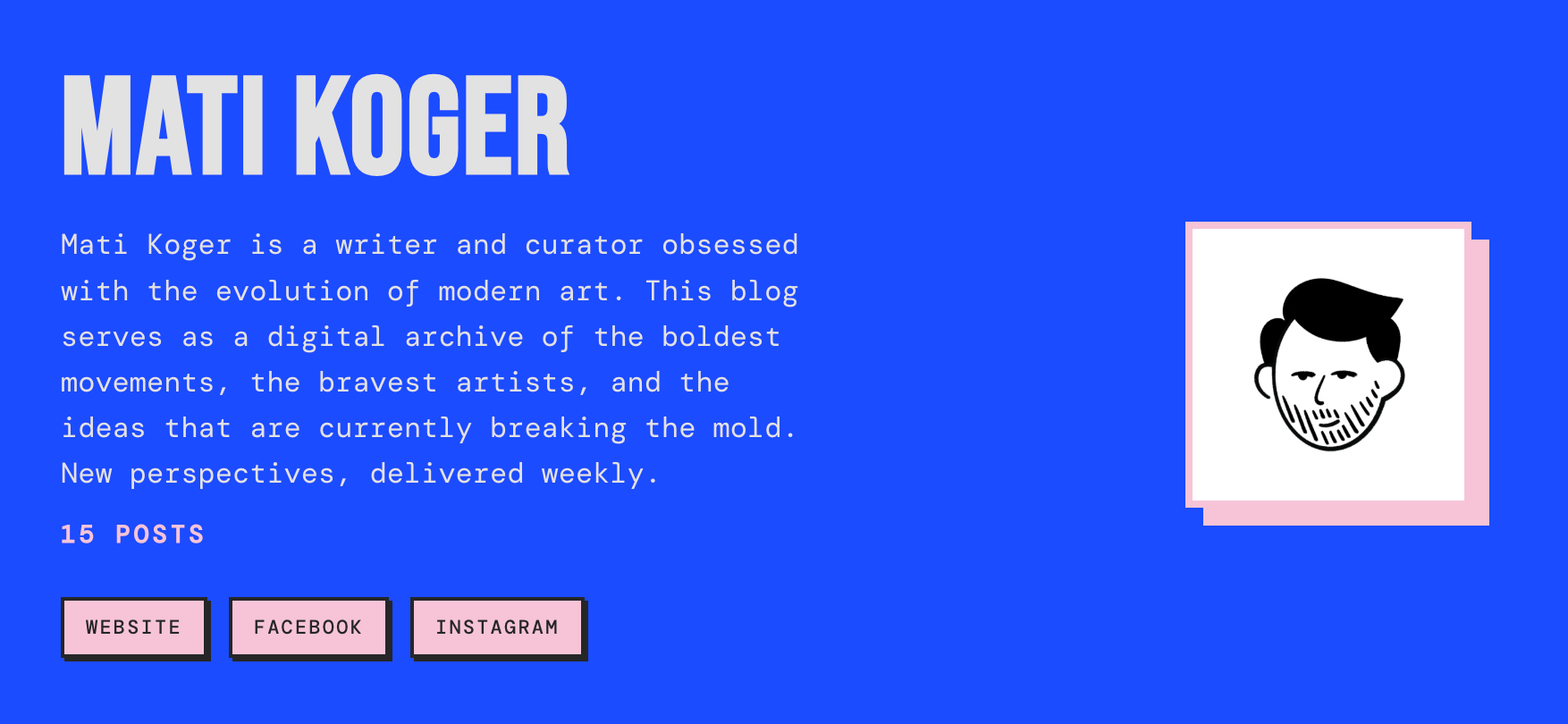
Individual author profiles can display their personal social media links on author pages and in author bio sections:
Adding Social Links to Author Profiles:
- Go to
Settings>Staffin Ghost Admin. - Edit an author profile.
- Scroll to the
Social accountssection. - Fill in the relevant social platform fields.
- Click
Save.
Supported Platforms for Authors:
Authors can add links to these platforms directly in their Ghost profile:
| Platform | Field Name | Notes |
|---|---|---|
| Website | Website | Any personal or professional website |
| Facebook profile/page username | ||
| X (Twitter) | X.com username (still labeled “Twitter” in Ghost) | |
| Instagram username | ||
| TikTok | TikTok | TikTok username |
| YouTube | YouTube | YouTube channel URL or username |
| LinkedIn profile URL | ||
| Threads | Threads | Threads username |
| Bluesky | Bluesky | Bluesky handle |
| Mastodon | Mastodon | Full Mastodon profile URL |
Where Author Social Links Appear:
- Author archive pages (
/author/username/) - Author bio sections within posts
- The Authors listing page (if using the Authors template)
Author social links appear as icons with tooltips and open in new tabs when clicked.
Primary Navigation (Header)
Configure the main menu displayed in your site header:
- Go to
Settings>Navigation. - Edit items under
Primary navigation. - To create dropdown submenus:
- Add a main item (e.g.,
Resources). Set its URL to#. - Add sub-items directly below it, prefixing their labels with a dash
-(e.g.,- Documentation,- Tutorials). Assign actual URLs to these sub-items.
- Add a main item (e.g.,
- Click
Save.
Secondary Navigation (Footer)
Configure the links displayed in your site footer, organized into columns:
- Go to
Settings>Navigation. - Edit items under
Secondary navigation. - To create columns:
- Add a column header item (e.g.,
Company). Set its URL to#. - Add the links for that column directly below the header (e.g.,
About Us,Contact). - Add another header item with URL
#to start the next column (e.g.,Legal). - Add links for the second column below its header (e.g.,
Privacy Policy,Terms of Service).
- Add a column header item (e.g.,
- Click
Save.
Links to external websites will automatically open in a new tab and show an indicator icon.
Homepage Setup
Hero Section
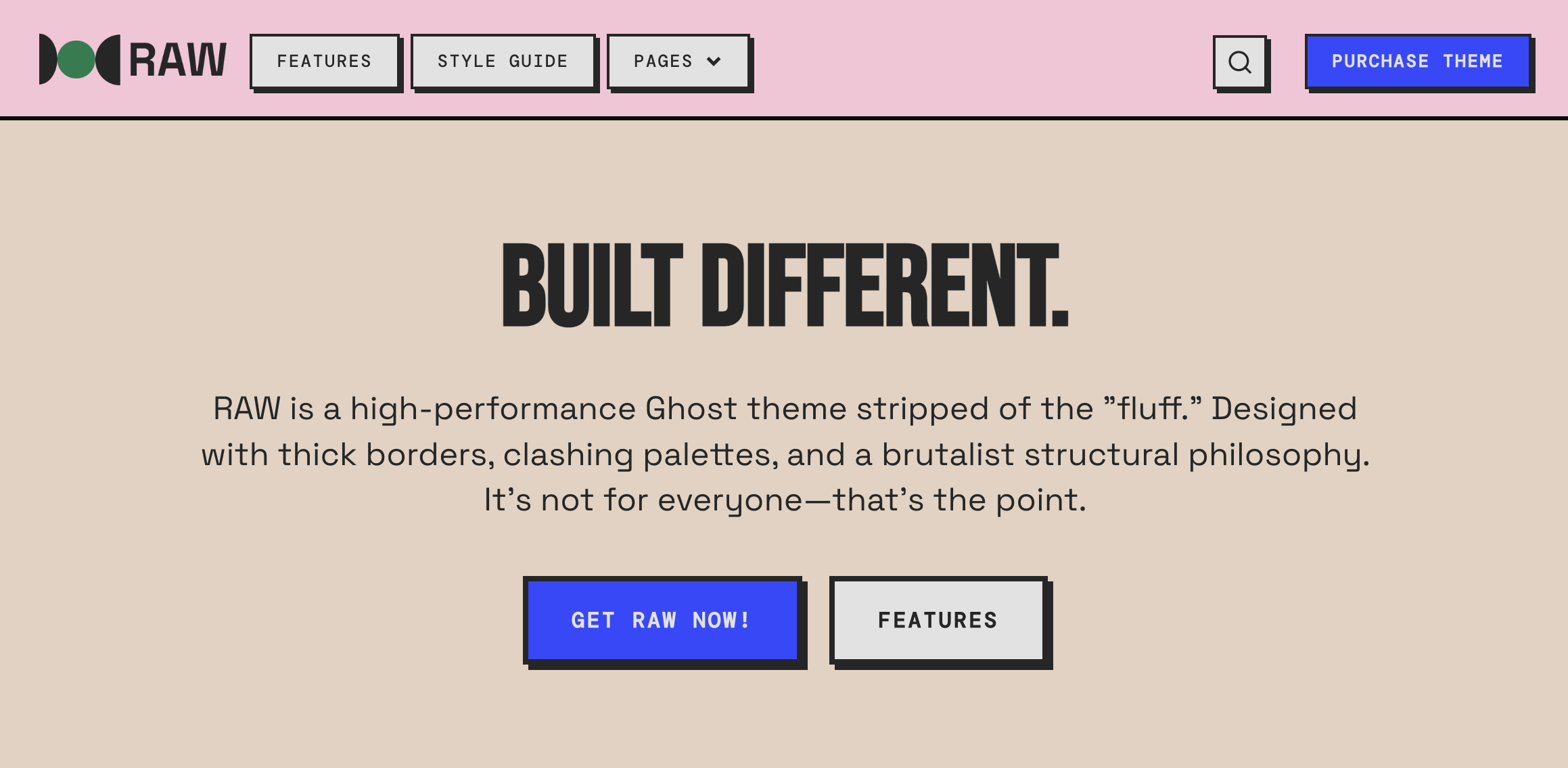
Create an eye-catching hero section on your homepage to welcome visitors and highlight your key message:
- Go to
Settings>Design & branding>Customize>Theme. - Expand the
Homepagesection. - Configure the hero section options:
Show hero:
- Toggle on/off.
Hero Headline:
- Add headline text in the
Hero Headlinefield.
Hero Subheader:
- Add supporting text in the
Hero Subheaderfield.
Hero Actions:
- Configure what buttons visitors can take in the Hero section.
- Buttons: Primary and Secondary with links assigned to every button
- Click
Save.
Note: The hero section only appears if toggle is on.
Header buttons
Raw header supports 2 custom buttons: Primary and Secondary
- Go to
Settings>Design & branding>Customize>Theme. - Expand the
Homepagesection. - Configure the header button options:
Primary button:
- Header primary button text
- Header primary button link
Secondary button:
- Header secondary button text
- Header secondary button link
- Click
Save.
Page Templates
Raw includes several templates for creating custom pages.
Authors Page
Create a page listing all site authors with their profiles:
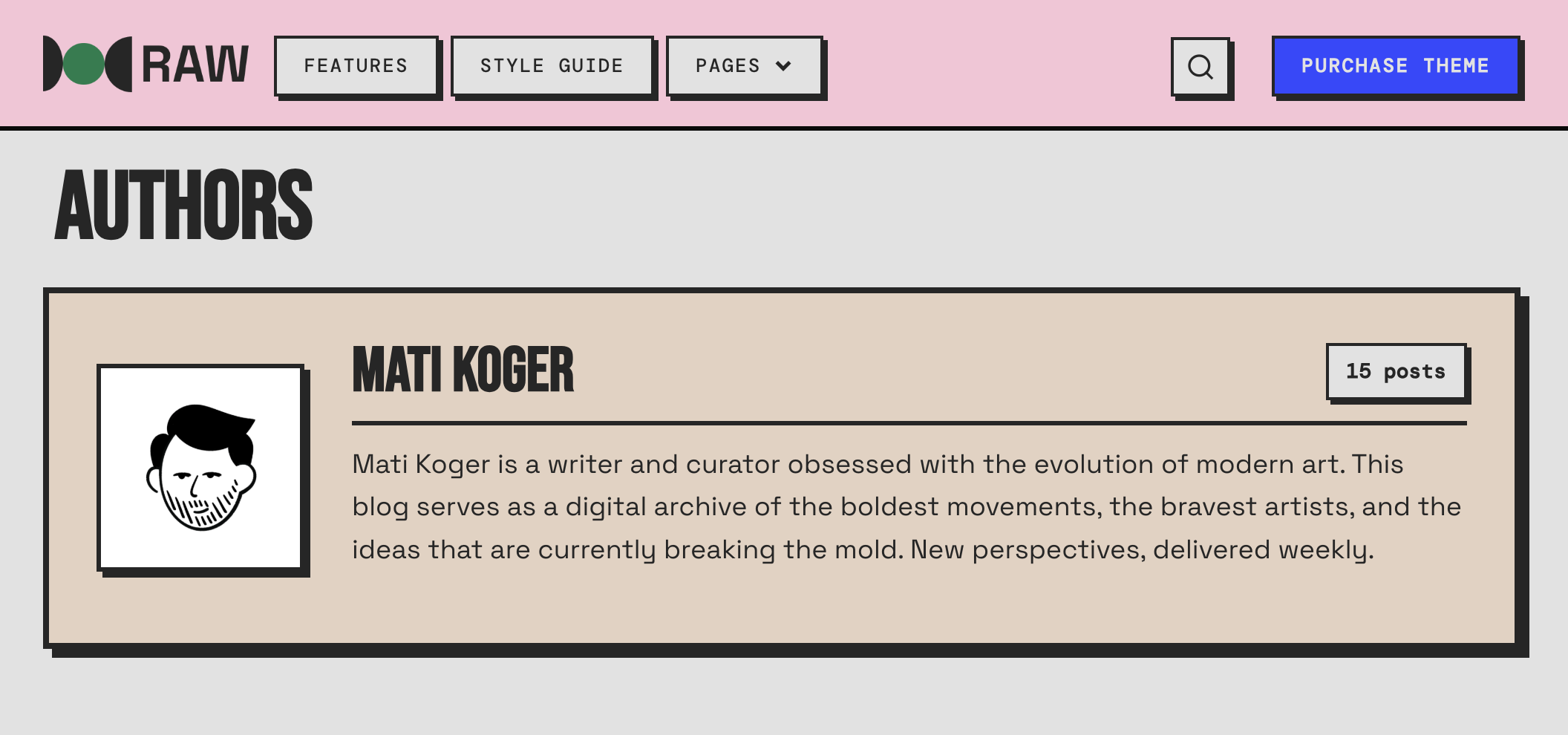
- Create a new page in Ghost Admin (e.g., title “Our Team”).
- Open page settings (gear icon).
- Under
Template, selectAuthors. - Set the page URL to
/authors. - Publish the page.
Ensure author profiles in Staff settings have a profile image, bio, and any relevant social links filled out.
Tags Page
Create a page listing all tags used on your site:
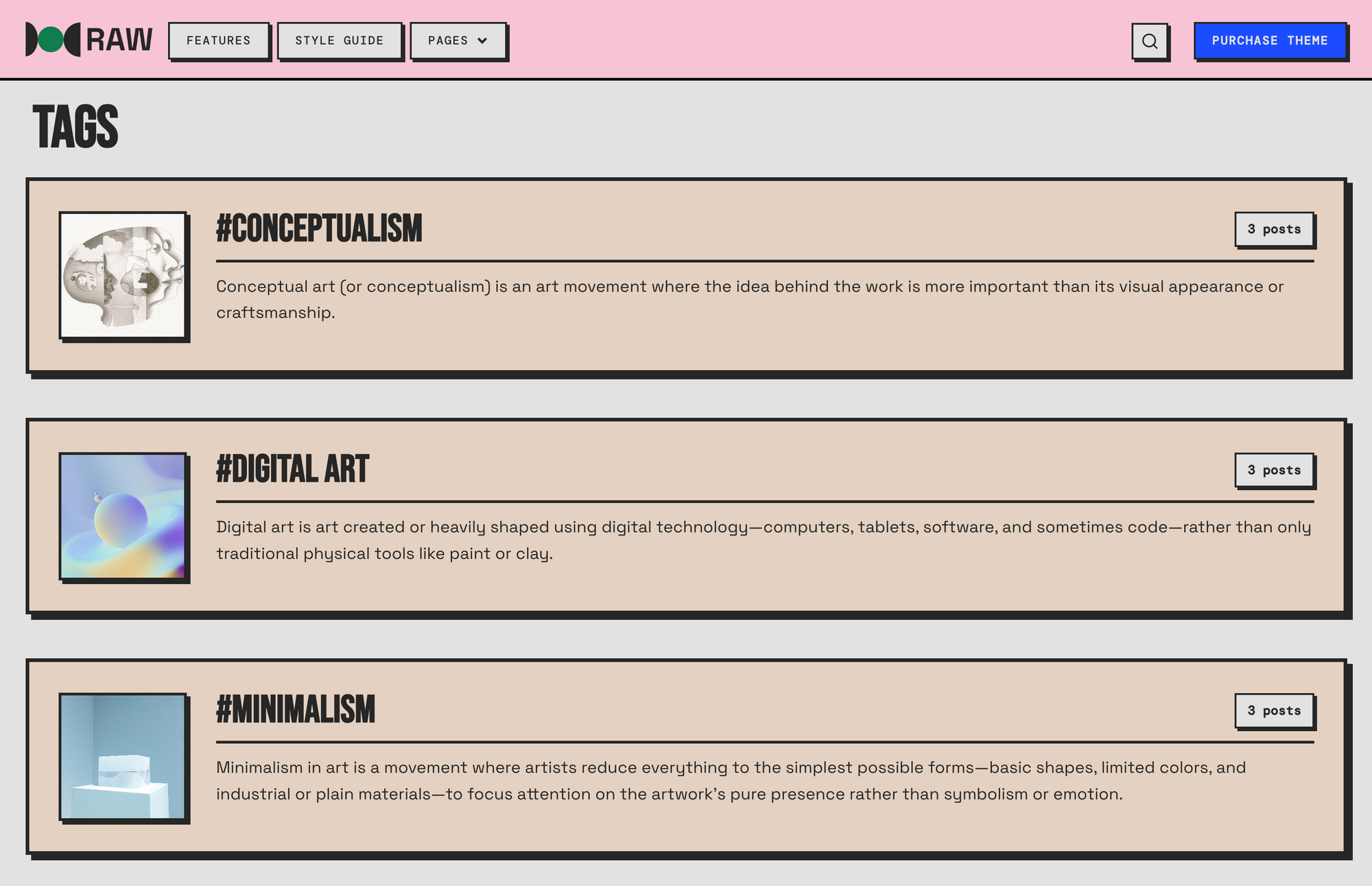
- Create a new page (e.g., title “Topics”).
- Open page settings.
- Under
Template, selectTags. - Publish the page.
Add this page to your site navigation for easy access. For best results, ensure your tags have descriptions and feature images set under Tags in Ghost Admin.